
A practical guide to boosting FPS, lowering lag, and getting the most out of your hardware — no expensive upgrades needed.
Running games on an older or low-spec PC can be frustrating — lag, stutters, and frame drops can ruin even the best gaming experiences. But the good news is: you don’t need a new GPU or high-end rig to improve performance.
This guide walks you through practical, effective ways to optimize game performance on older PCs — all without spending a dime.
1. Clean Up Your System
Before launching any game, make sure your system isn’t being dragged down by background clutter.
- Uninstall unused programs and bloatware
- Disable startup programs via Task Manager (Windows)
- Use tools like CCleaner to remove temporary files
- Defragment your HDD (skip if you have an SSD)
📝 The lighter your system runs, the more resources games can use.
2. Update Drivers (Especially Graphics)
Old or generic drivers can seriously impact performance.
- NVIDIA: nvidia.com/Download
- AMD: amd.com/en/support
- Intel: intel.com
Also update:
- DirectX
- .NET Framework
- Visual C++ Redistributables
📝 Updated drivers = smoother graphics and fewer crashes.
3. Lower In-Game Settings (Smartly)
You don’t have to turn everything to “Low” — just tweak the right settings:
| Setting | Impact on FPS | Recommendation |
|---|---|---|
| Resolution | 🔥 High | Lower to 720p or less |
| Shadows | 🔥 High | Turn off or to Low |
| Anti-Aliasing | 🔥 High | Disable completely |
| Texture Quality | 🟡 Medium | Set to Medium/Low |
| Draw Distance | 🔥 High | Lower to reduce load |
| Post-Processing FX | 🔥 High | Disable Bloom, Motion Blur |
📝 You’ll be surprised how much smoother a game can run with just a few tweaks.
4. Use Windowed or Borderless Mode
On older GPUs, fullscreen mode can sometimes cause stutters or input lag.
Try running the game in borderless windowed or native windowed mode for better stability.
5. Use Performance-Boosting Software
These free tools can help optimize system resources:
- Razer Cortex – Frees up RAM and stops background processes while gaming
- MSI Afterburner – Useful for GPU monitoring and light overclocking
- ISLC (Intelligent Standby List Cleaner) – Reduces stutters in memory-heavy games
📝 Be cautious with overclocking and always monitor temperatures.
6. Turn Off Windows Visual Effects
- Go to System > Advanced > Performance Settings
- Choose “Adjust for best performance”
- Disable unnecessary animations and transparency
📝 This frees up more memory and CPU power for games.
7. Disable Background Apps & Overlays
Before launching a game, close:
- Chrome or other browsers
- Discord overlays
- Steam/GeForce/Windows Game Bar overlays
- OneDrive or sync services
📝 Even 5–10% CPU/RAM usage saved can boost your in-game FPS.
8. Use Game-Specific Config Tweaks
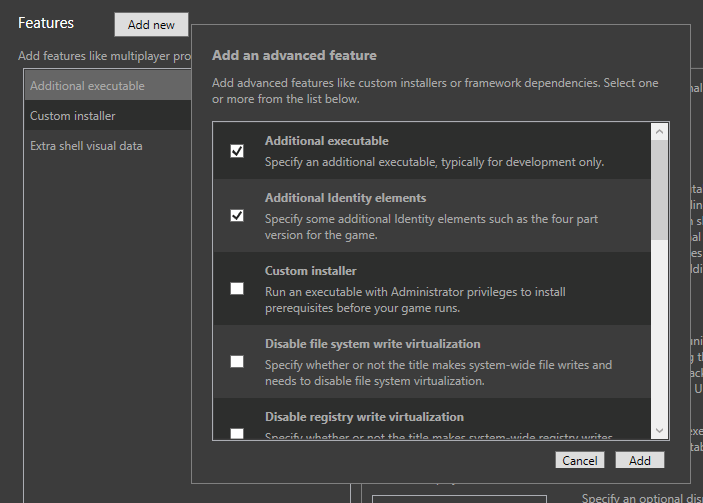
Many games have INI, .cfg, or launch options that can be manually edited for extra performance:
- Look up community optimization guides for each game
- Example: Skyrim has dozens of INI tweaks for FPS
- Unity/Unreal games often have resolution/graphics config files in user folders
📝 Manual tweaks often unlock options not available in-game menus.
9. Control Temperature & Throttling
Overheating can cause FPS drops or even crashes.
- Clean your fans and vents from dust
- Use a laptop cooling pad
- Monitor temps with HWMonitor or Speccy
- Avoid gaming on a soft surface (like a bed or pillow)
📝 Cooler hardware = better performance and lifespan.
10. Try Lightweight or Optimized Game Versions
Some games have:
- Lite versions (e.g., PUBG Lite — now discontinued but once popular)
- Modded builds with low-res textures
- Low-spec mods made by community
📝 Always look for “low-end PC” settings or community packs.
Final Thoughts
Gaming on an older PC doesn’t mean giving up on fun. With smart optimizations, careful system tuning, and a bit of patience, you can boost FPS, reduce lag, and enjoy smoother gameplay — all without spending a cent.
🎮 Want games that run well on low-end PCs? Check out our curated Low-End Game Library at PCGamesBase!
About the Author